Setup
How to set up DisplayBridge, step by step
Setting up takes about five minutes. You install the same app on both Macs, allow two permissions, connect the two Macs with a cable and click Connect. Every step below says on which Mac you do it.
What you need
- Two Macs with macOS 13 Ventura or later Intel or Apple silicon, each with a Thunderbolt 3 or newer port.
- One Thunderbolt cable Thunderbolt 3, Thunderbolt 4, or a USB4 cable rated 40 Gb/s. A USB-C charging cable looks the same but doesn't work.
- About five minutes Both Macs switched on and awake.
For the full 5120 × 2880 at 60 Hz, the Mac that becomes the display has to be a 27-inch Retina 5K iMac from 2017, 2019 or 2020, or an iMac Pro. For 120 Hz, it has to be a 14-inch or 16-inch MacBook Pro from 2021 or later. Every other Mac works as a display too, at its own resolution and 60 Hz.
Tutorial video
My setup video shows the same steps on a MacBook Pro and an iMac, in six minutes:
Plays in YouTube's privacy-enhanced player — nothing loads until you press Play. Open on YouTube
Which Mac does what
The two Macs have different jobs. In the app, the Mac you work on lists the other Mac under Receivers.
The Mac you work on
For example your MacBook. Its desktop is extended onto the other Mac's screen.
- DisplayBridge installed
- Local Network allowed
- Screen Recording allowed
- A license after the 7-day trial
The Mac that becomes the display
For example your iMac. It shows the picture and plays the sound.
- DisplayBridge installed and open
- Local Network allowed
- No Screen Recording permission
- No license, ever
Install DisplayBridge on both Macs
On both Macs
Download DisplayBridge. The link starts the download right away; a file ending in .dmg lands in your Downloads folder. Open it, and drag DisplayBridge onto the Applications folder.
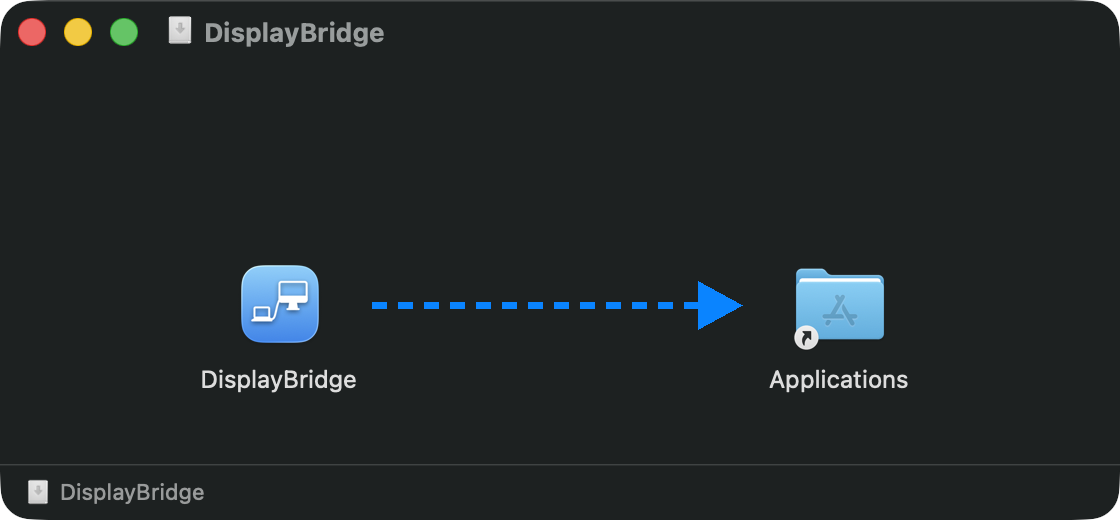
Then open DisplayBridge from your Applications folder, not from the installer window. The first time, macOS asks whether you really want to open an app downloaded from the internet; click Open.
Do the same on the other Mac: download it there too, or copy the .dmg file over with AirDrop or a USB stick. It is the same app for both Macs; there is no separate version for the Mac that becomes the display.
Allow Local Network access
On both Macs
When DisplayBridge starts for the first time, macOS asks whether it may find devices on your local network. Click Allow. This is how the two Macs find each other over the cable; nothing is sent to the internet.
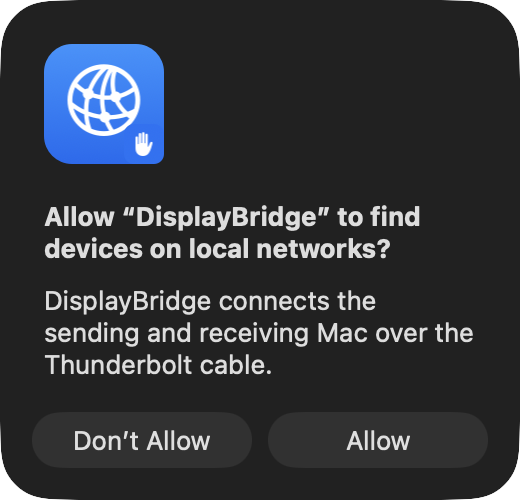
macOS 14 Sonoma and older don't ask this question at all, which is fine.
Clicked Don't Allow by mistake? Open System Settings › Privacy & Security › Local Network and switch DisplayBridge on. Without it, the other Mac never appears in the list.
Allow Screen Recording on the Mac you work on
Only on the Mac you work on
To send its desktop over the cable, DisplayBridge has to read the picture of that Mac's screen, and macOS asks for permission for that. DisplayBridge shows a card for it at the top of its window:
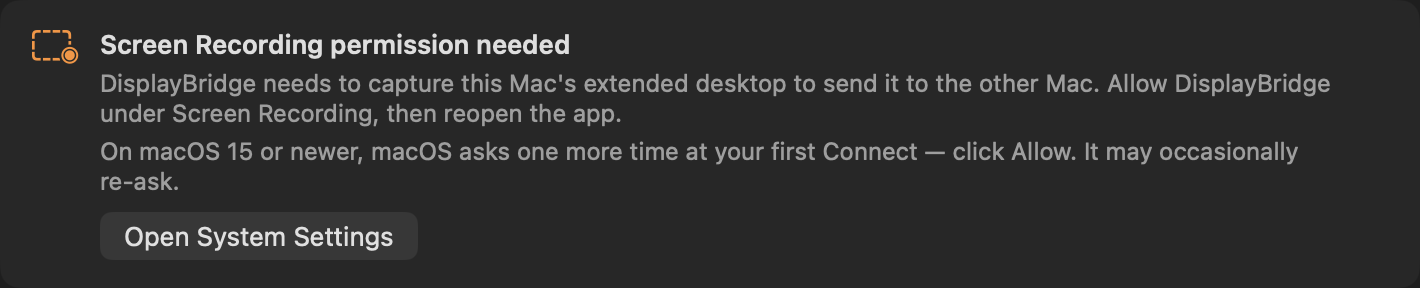
- Click Open System Settings on that card.
- Under Screen & System Audio Recording, switch DisplayBridge on. macOS asks for your password or Touch ID.
- Click Quit & Reopen when macOS asks. The permission only applies after the app has restarted, so don't skip this.
On macOS 15 or newer, macOS asks one more time when you click Connect for the first time; click Allow. macOS repeats this question now and then, roughly once a month, and one click on Allow is all it needs.
The Mac that becomes the display doesn't need this permission and never asks for it.
The card is still there after you switched DisplayBridge on? Quit DisplayBridge completely (DisplayBridge › Quit DisplayBridge) and open it again.
Connect the two Macs with the cable
On both Macs
Plug the cable into a Thunderbolt or USB-C port on each Mac. On an iMac, the Thunderbolt ports are on the back, marked with a small lightning symbol. You don't have to set up anything: macOS creates the connection between the two Macs by itself.
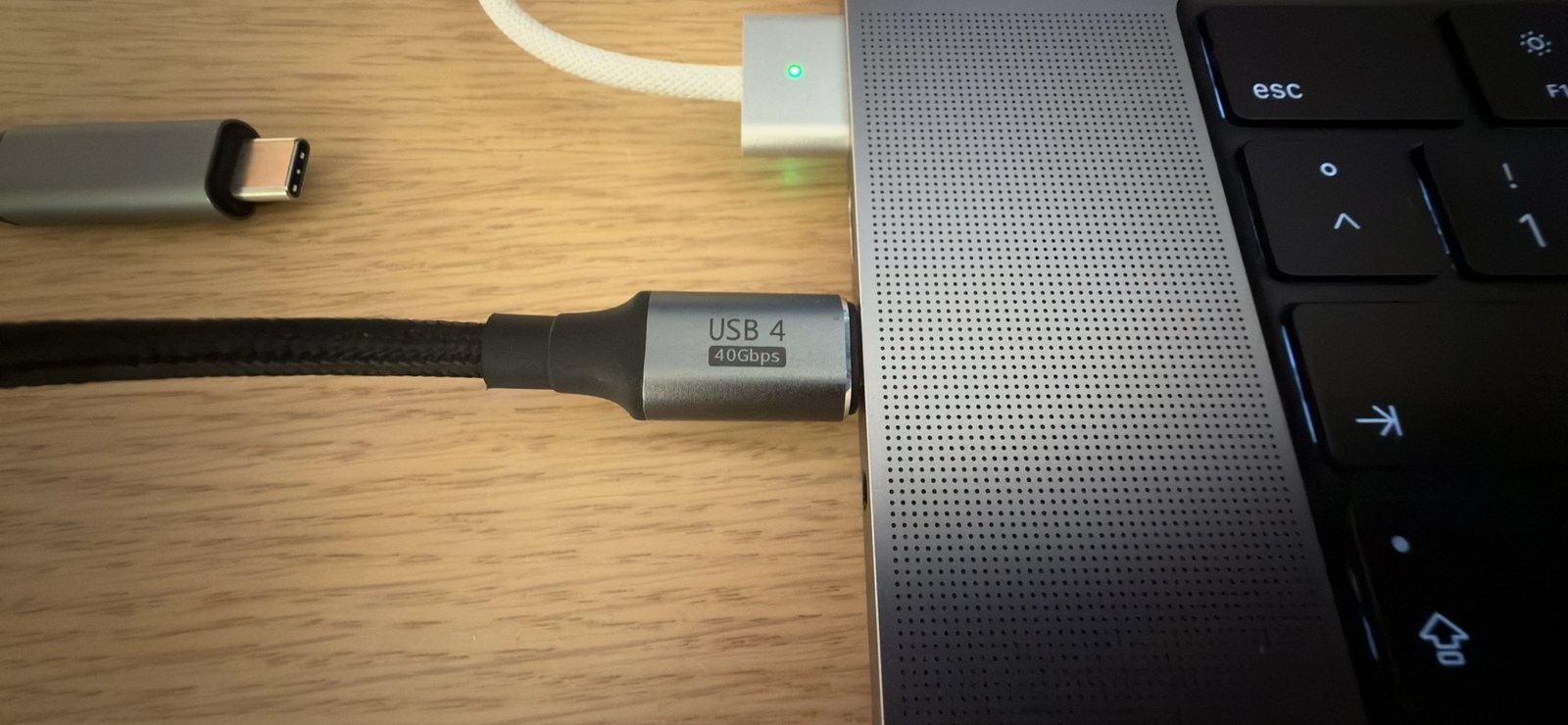
Give it about 15 seconds. Right after you plug in the cable, macOS needs a moment to set up the connection. During that time, the DisplayBridge window says "Cable connected — macOS is assigning the link addresses". Then the other Mac appears on the right, under Receivers.
Nothing appears after 30 seconds? See The other Mac doesn't appear under Receivers below.
Choose Extend or Mirror, then click Connect
On the Mac you work on
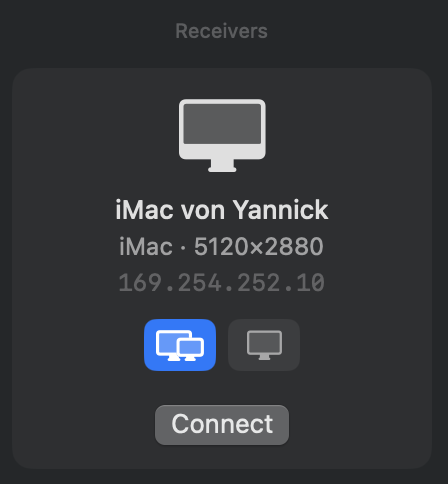
The other Mac's card shows its name, its resolution and two buttons above Connect:
- Extend (the left button, two screens, selected by default): the other Mac becomes extra desktop space next to your screen, like a second monitor. This is what most people want.
- Mirror (the right button, one screen): the other Mac shows exactly what is on your screen, just bigger.
Click Connect. The other Mac's screen goes dark for a moment and then shows your second desktop.
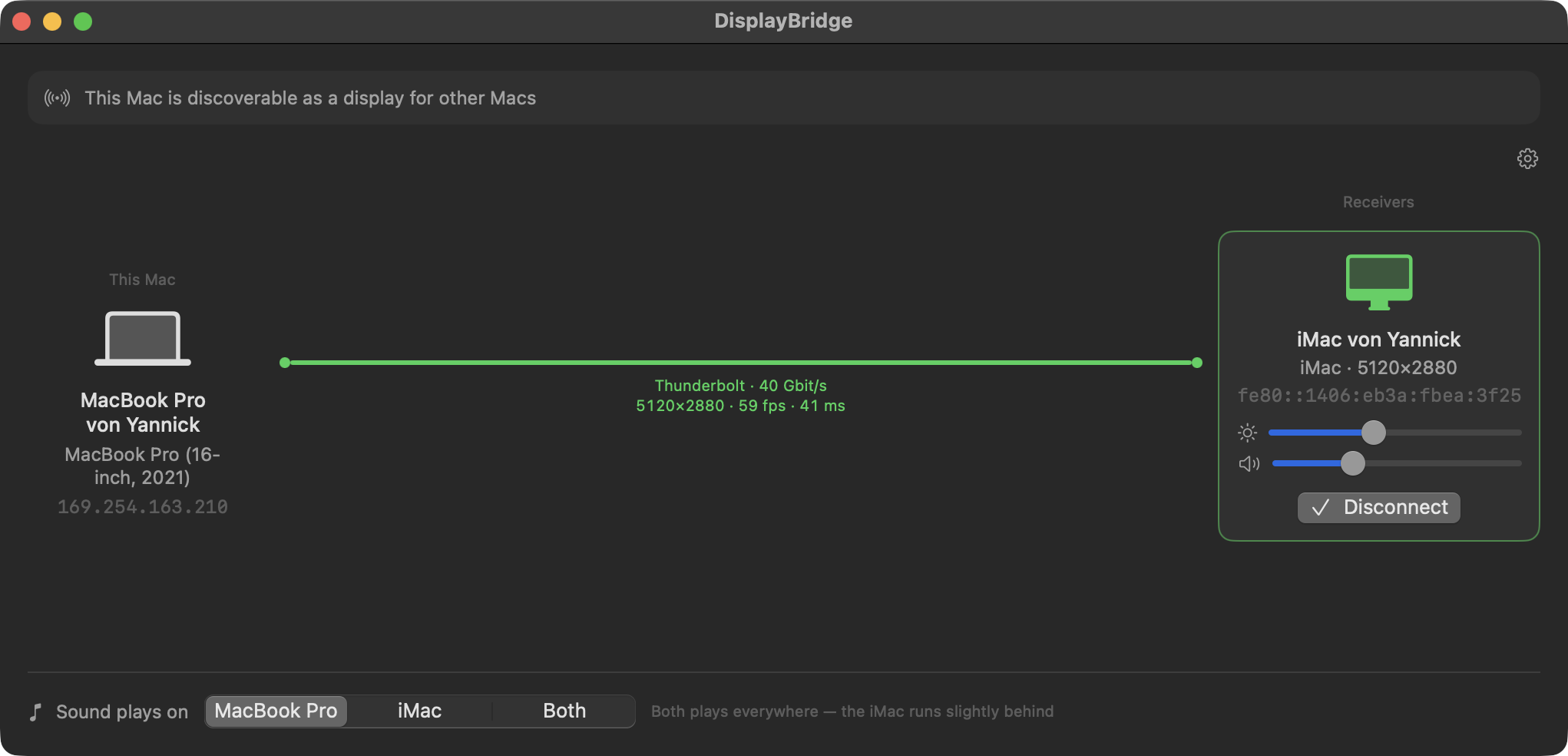
Once connected, the line between the two Macs turns green and shows the connection: the cable speed, the resolution, the frames per second and the delay. The two sliders on the card set the other Mac's brightness and volume, and at the bottom you choose where the sound plays.
The other screen stays black? Almost always the Screen Recording permission from step 3: quit DisplayBridge on the Mac you work on and open it again.
Arrange the displays
On the Mac you work on
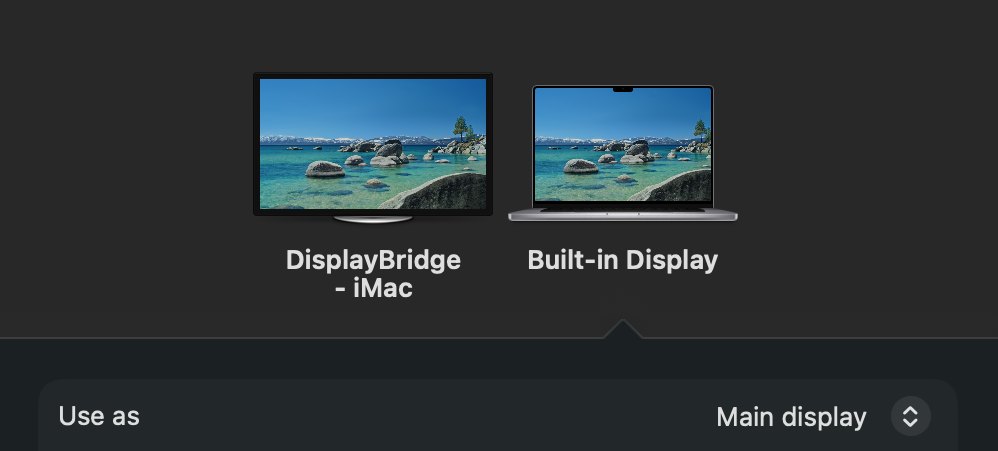
Open System Settings › Displays. The other Mac shows up there as a normal display called "DisplayBridge - iMac" (or the name of your Mac model), next to your Mac's own screen:
Click Arrange… at the bottom and drag the iMac to where it really stands on your desk. If it stands to the left of your MacBook, drag it to the left; then the mouse pointer crosses over exactly where you expect. Click Done.
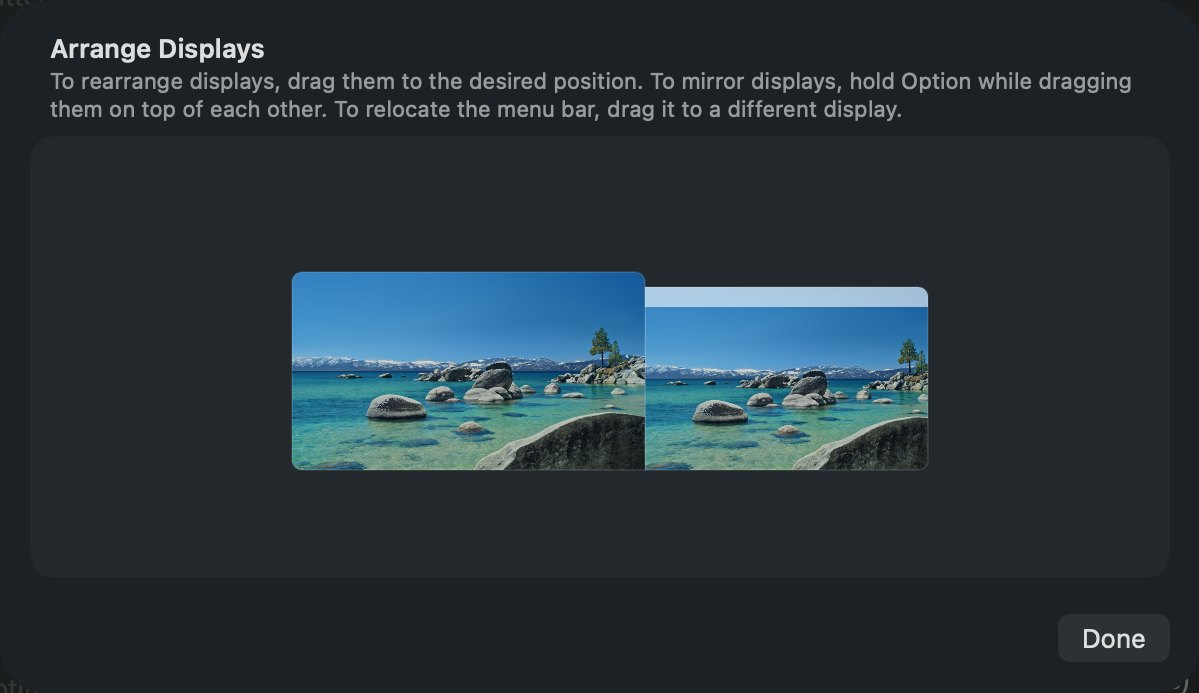
Shortcut: while connected, the DisplayBridge icon in the menu bar has Arrange Displays…, which opens the same page. In System Settings › Displays you can also make the iMac your main display (Use as: Main display) or pick a different resolution. macOS remembers all of this, so you only do it once.
From now on, it takes one click
Next time, plug in the cable, make sure DisplayBridge is open on both Macs and click Connect. To stop, click Disconnect, or press Esc on the keyboard of the Mac that is the display. That Mac is then a normal Mac again.
The free trial and the license
- The first 7 days are free, with everything working. No account, no email address, no credit card.
- After that, the Mac you work on needs a license to start a connection: $29, paid once, including every 1.x update. The Mac that is the display never needs one.
- Activating takes one minute. After you buy DisplayBridge, the license key arrives by email. On the Mac you work on, open the DisplayBridge menu › License…, paste the key and click Activate.
Moving to a new Mac? Open License… on the old one and click Deactivate this Mac first, then activate the new Mac with the same key.
Other setups
A Mac without its own screen, like a Mac mini
If the Mac you want to see has no monitor (a Mac mini or a Mac Studio next to an iMac), you can start the connection from the iMac instead:
- On the Mac mini, click the gear icon in the DisplayBridge window and switch on Let the other Mac start the connection.
- On the iMac, the Mac mini's card then shows a Show that Mac here button. Click it, and the Mac mini's desktop appears on the iMac.
The Mac mini sends its screen, so the license and the Screen Recording permission belong on the Mac mini, not on the iMac. For the first setup, the Mac mini needs a screen once, or Screen Sharing from the other Mac. After a restart, it has to be logged in with DisplayBridge open, and you click Show that Mac here again. My guide Use your iMac as a monitor for a Mac mini shows the whole setup without a monitor, every start, locking and sleep, and the limits.
Working with the MacBook closed
Connect in Extend mode, then close the MacBook's lid. The iMac becomes your only screen, with the menu bar and the Dock, and you keep working with an external keyboard and mouse or trackpad.
Several Macs as displays at the same time
Connect each one with its own cable. Every Mac appears as its own card under Receivers, and you click Connect on each. On my desk, one MacBook Pro runs two 27-inch iMacs this way.
If something doesn't work
The other Mac doesn't appear under Receivers
- Wait 15 seconds after plugging in the cable. That is by far the most common reason.
- Check that DisplayBridge is open on both Macs, and that both are awake.
- Check Local Network on both Macs (System Settings › Privacy & Security › Local Network). If one Mac has it switched off, the list stays empty.
- Try another cable, ideally one that came with a Mac or a display. A USB-C charging cable shows no other symptom than this one.
- Connect by address: click Connect to address… in the DisplayBridge window and type the other Mac's address from System Settings › Network › Thunderbolt Bridge. That skips the automatic search completely.
I click Connect and nothing happens, or the screen stays black
In nine out of ten cases, the Screen Recording permission on the Mac you work on is missing, or DisplayBridge wasn't reopened after you allowed it. Quit DisplayBridge completely and open it again. On macOS 15 or newer, also check that you clicked Allow when macOS asked at the first Connect.
The connection drops, or says the other Mac can't be reached
Usually the Mac that is the display went to sleep before you connected, or the cable came loose. Wake it, plug the cable back in and wait the 15 seconds. While a connection is running, DisplayBridge keeps that Mac awake by itself.
The window shows only a few frames per second
That is correct on a still screen: when nothing moves, there are no new pictures to send. Move a window or play a video, and the number goes up to 60 (or 120 on a MacBook Pro with ProMotion).
It says the free trial has ended
Starting a connection from that Mac now needs a license; see The free trial and the license above. If you want to try the other direction, the Mac that is the display keeps working without one.
Updating and uninstalling
- Updates install themselves. DisplayBridge checks for updates and installs them when you agree; there is nothing to download again. When one Mac offers an update, update both Macs: two different versions on the two ends is the most confusing thing that can happen.
- To uninstall, drag DisplayBridge from the Applications folder to the Trash. There is no installer, no login item and no background service, so nothing stays behind. If you want, also remove it from the Screen Recording and Local Network lists in System Settings › Privacy & Security.
Still stuck?
Write to me at support@displaybridge.app. Tell me which two Macs you use, which macOS versions they run, and at which step it stopped working; then I can usually answer in one reply. More answers are in the FAQ.