Use your iMac as a monitor for a Mac mini
Yes, you can use an iMac as the monitor for a Mac mini: either as a second screen next to the monitor you already have, or as the Mac mini's only screen. The 27-inch 5K iMacs have no Target Display Mode, so you need an app: DisplayBridge, which I develop, sends the Mac mini's picture to the iMac over one Thunderbolt cable. I tested everything on this page with my own Mac mini, my 5K iMac from 2017 and my iMac Pro.
In short: if the Mac mini has a monitor, the setup takes about five minutes. If it has none, you prepare it once with a borrowed monitor or TV, and after every restart you type your password blind on the Mac mini's keyboard and click once on the iMac.
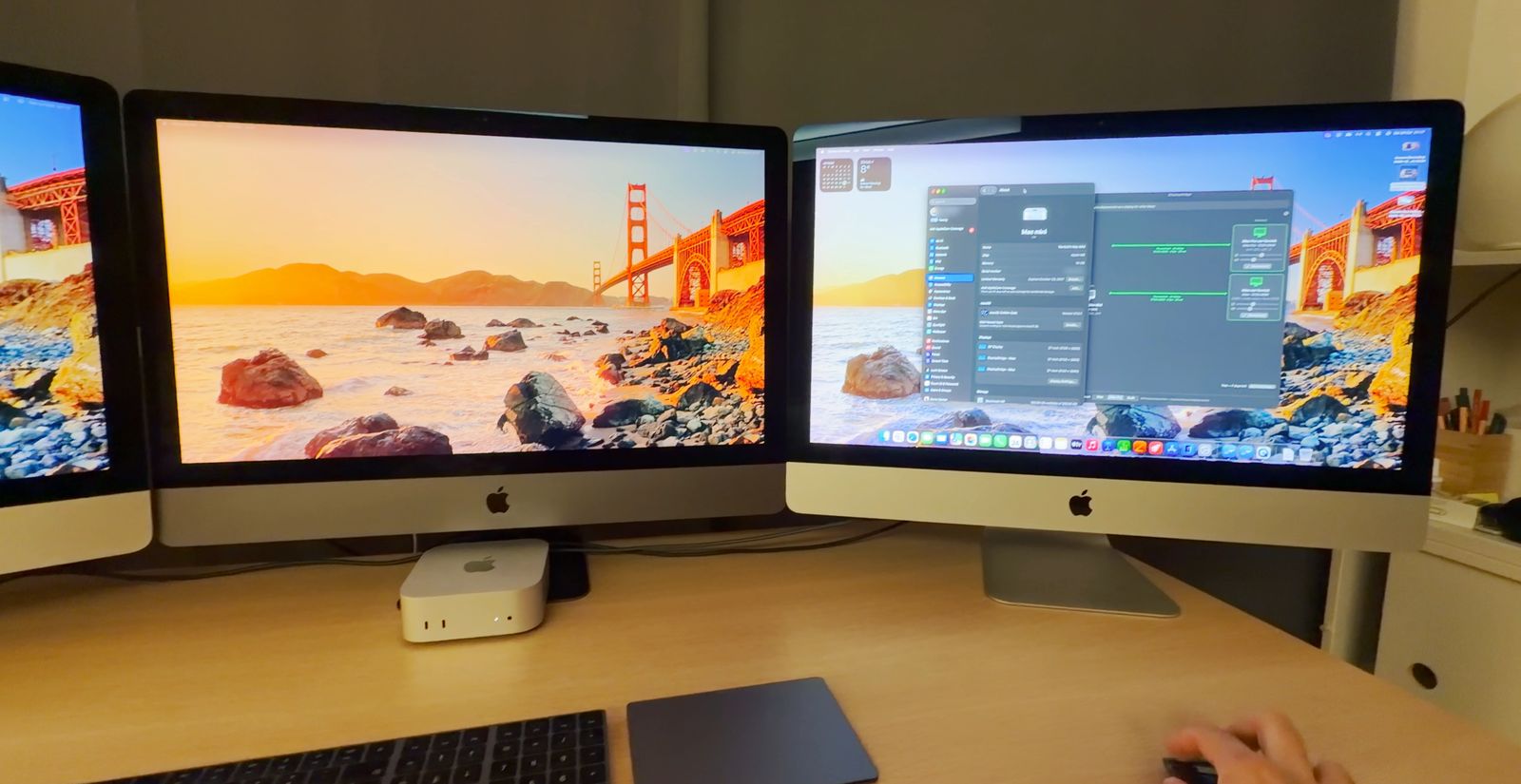
Two situations: with a monitor, or without one
How much there is to do depends on whether your Mac mini has a monitor of its own:
The Mac mini already has a monitor
The iMac becomes a second screen next to it.
- Setup in about five minutes
- After that: plug in the cable, click Connect
The Mac mini has no monitor at all
The iMac is its only screen.
- Prepared once, with a borrowed monitor or TV
- After every restart: password typed blind, then one click on the iMac
What you need
- A Mac mini with Thunderbolt Every Mac mini with Apple silicon, or the Intel Mac mini from 2018, on macOS 13 Ventura or later. I use a Mac mini with M6.
- A 27-inch 5K iMac or an iMac Pro From 2017, 2019 or 2020, on macOS 13 or later. The two Macs don't need the same macOS version.
- Thunderbolt 40 Gbit/s cable Thunderbolt 3, 4 or 5, or USB4 rated 40 Gbit/s, one per iMac. A USB-C charging cable looks the same but doesn't work.
- A license only for the Mac mini $29, paid once, after a free 7-day trial with all features enabled.
- A keyboard and mouse for the Mac mini The iMac's own keyboard and mouse don't control the Mac mini.
- Without a monitor: a screen, once Any monitor or TV with HDMI, for the first setup only.
My iMac from 2017 runs Ventura, its last macOS, and the Mac mini runs the newest one; that works perfectly.
Setup when the Mac mini already has a monitor
Both situations start the same way. With a monitor connected to the Mac mini:
- Download DisplayBridge (the link starts the download right away) and install it on the Mac mini and on the iMac. It is the same app for both. Open it from the Applications folder and click Open when macOS asks about an app from the internet.
- On the Mac mini, click Allow when macOS asks whether DisplayBridge may find devices on your local network. On the iMac, macOS 15 or newer asks the same question; click Allow there too. My iMac on Ventura doesn't ask.
- On the Mac mini, allow Screen Recording: DisplayBridge shows a button that opens the right page in System Settings. Switch DisplayBridge on, enter your password and click Quit & Reopen. The iMac doesn't need this permission, because it only shows the picture.
- Connect the two Macs with the cable, using a Thunderbolt port on the back of each. After a few seconds, the iMac appears in DisplayBridge on the Mac mini.
- Click Connect. The first time, macOS asks once more whether DisplayBridge may access your screen; click Allow. The iMac goes black for a moment and then shows the Mac mini's second desktop.
- In System Settings → Displays, click Arrange… and drag the screens to where they stand on your desk.
With two iMacs, connect each with its own cable and click Connect once for each. My step-by-step guide with screenshots shows every one of these steps in detail.
If your Mac mini keeps its monitor, that's all
From now on you only plug in the cable, or leave it plugged in, and click Connect.
How it works when the Mac mini has no monitor
DisplayBridge is a normal app, and it only runs once you are logged in to your Mac. Everything you see on the iMac, the extra display and the picture on it, comes from that app.
When the Mac mini starts, the first thing macOS shows is the login screen, where you type your password. At that moment, DisplayBridge isn't running yet, because macOS doesn't start any apps before you have logged in. So there is nothing to send, and the iMac can't show you that login screen. If FileVault is on, which it usually is on a new Mac, the disk itself is still locked at that point, so macOS can't log you in automatically either.
What this means for you, honestly
- After every restart, power cut or update, you type your password blind on the Mac mini's keyboard. The iMac shows nothing from the Mac mini until you are logged in.
- You never see anything from before the login on the iMac: not the login screen, not macOS Recovery, not the startup options. For those, you need a real monitor or TV.
- It doesn't reconnect by itself. After a restart, after sleep, or when you switch the iMac off and on, you click Show that Mac here once on the iMac.
- The Mac mini needs its own keyboard and mouse, because the iMac's don't control it.
So the solution is: you type your password blind, on the keyboard connected to the Mac mini. As soon as you are logged in, DisplayBridge starts by itself, the Mac mini appears in DisplayBridge on the iMac, and one click there brings its picture over. Here is what the iMac shows in each situation:
| The Mac mini is… | What the iMac shows | What you do |
|---|---|---|
| Starting up, at the login screen | Nothing from the Mac mini yet | Type your password blind on the Mac mini's keyboard and press Return |
| Logged in | The Mac mini's card in DisplayBridge, with a Show that Mac here button | Click Show that Mac here |
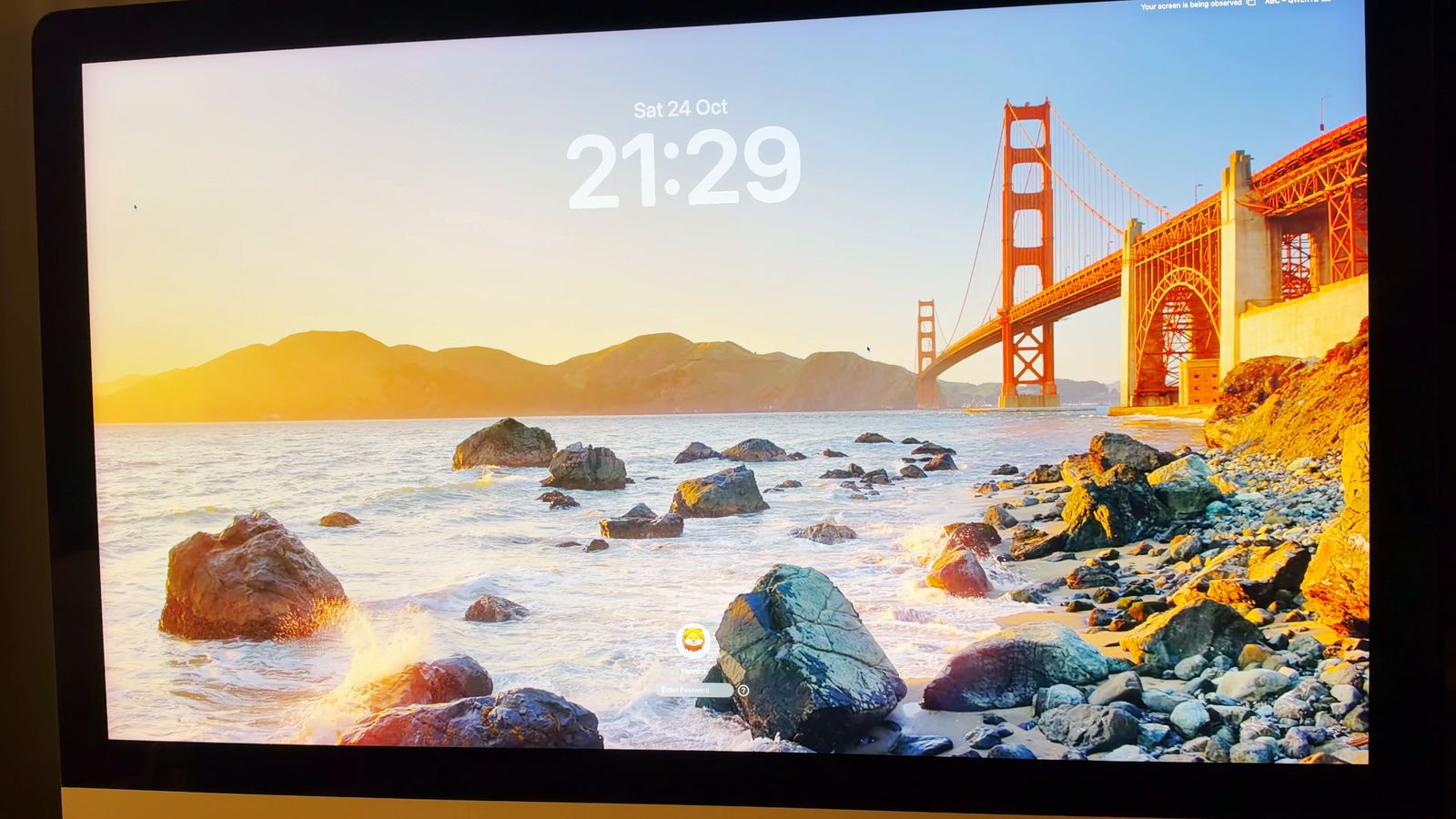
| Locked, by you or by itself | The lock screen, because the connection keeps running | Unlock it right there with your password |
| Asleep | Its own desktop again; the connection has stopped | Press a key on the Mac mini's keyboard, then click Show that Mac here |
| Restarted or switched off | Nothing from the Mac mini | Password blind, then Show that Mac here |
Preparing a Mac mini without a monitor, once
Step 1: Do the normal setup once, with a screen connected
On both Macs
A brand-new Mac mini needs a real screen for Apple's setup assistant anyway. Any monitor or TV with HDMI works, and you only need it for about fifteen minutes. Do the setup above completely, including clicking Connect once while the screen is connected: that is when macOS asks its questions about the local network and about recording the screen, and without a screen you couldn't answer them.
Step 2: Make DisplayBridge open when you log in
On the Mac mini
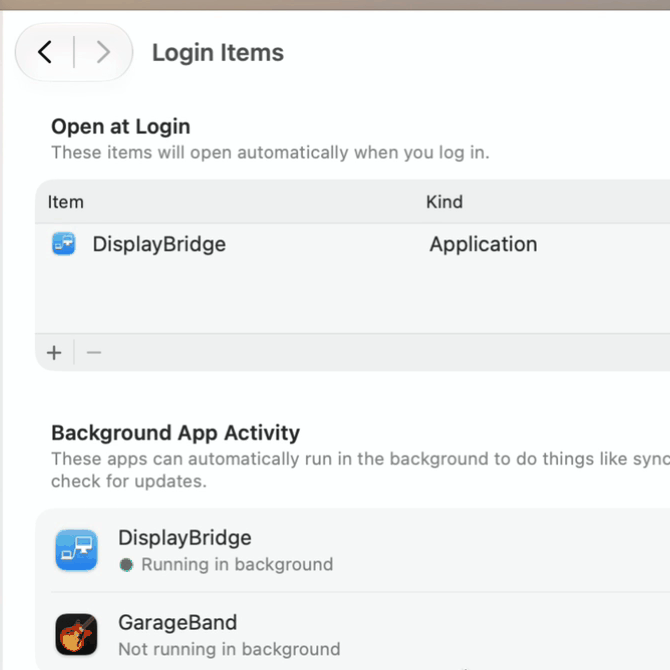
Open System Settings → General → Login Items & Extensions (on some macOS versions it is just called Login Items). Under Open at Login, click the + button, choose DisplayBridge in the Applications folder and click Open. From now on, DisplayBridge starts by itself every time you log in. It doesn't add itself there; you decide.
Step 3: Let the iMac start the connection
On the Mac mini
Normally you click Connect on the Mac that sends its screen. A Mac mini without a monitor has no screen to click on, so you let the iMac start the connection instead. In DisplayBridge, click the gear icon at the top right and turn on Let the other Mac start the connection.
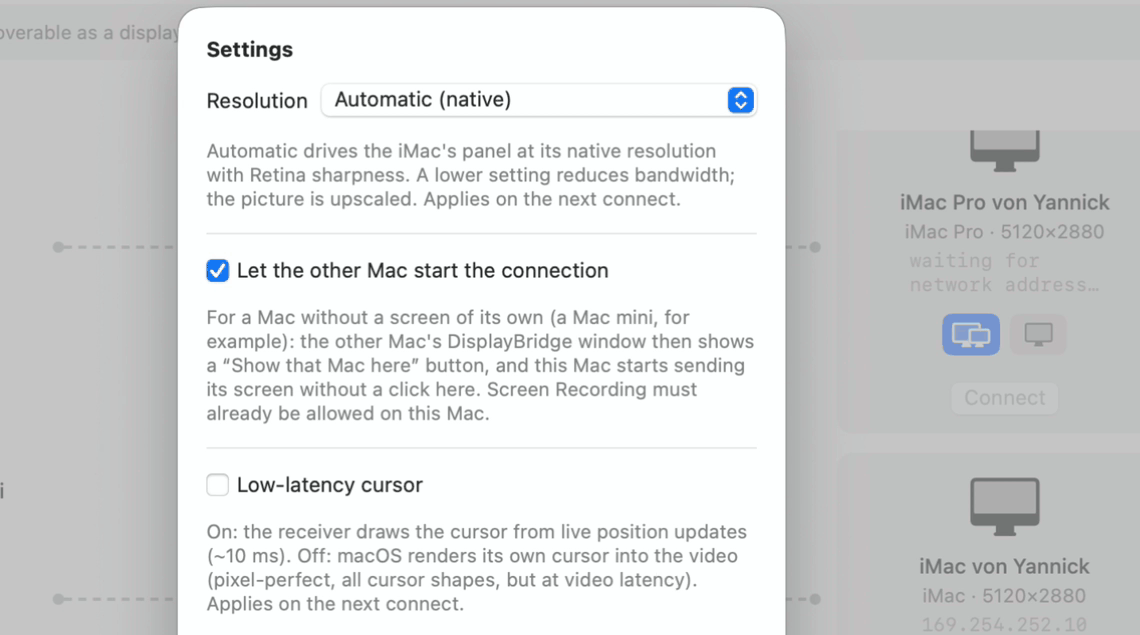
From then on, the Mac mini's card in DisplayBridge on the iMac shows a Show that Mac here button below Connect. Screen Recording has to be allowed on the Mac mini already, which you did in step 1.
Step 4: Keep the Mac mini from sleeping
On the Mac mini
When the Mac mini goes to sleep, the connection stops. To avoid waking it up and clicking again every time, open System Settings → Energy and turn on Prevent your Mac from automatically sleeping when the display is off.
Step 5: Turn off automatic macOS updates
On the Mac mini
Automatic macOS updates install at night and restart the Mac mini, and after every restart you have to type your password blind again. Open System Settings → General → Software Update, click the ⓘ button next to Automatic Updates and turn off Install macOS updates. Do still install updates regularly; it is easiest with a monitor or TV plugged in for that moment.
Step 6: Unplug the monitor and start without it
That is all the preparation. Unplug the borrowed monitor or TV; from now on, the iMac is the Mac mini's only screen. Test one start right away, as described next.
Every start: power on, password, one click
- Switch the Mac mini on. On the iMac, nothing happens yet: DisplayBridge is open there, but on the Mac mini it isn't running yet.
- Wait about half a minute until the Mac mini has reached its login screen.
- Type your password on the Mac mini's keyboard, without seeing anything, and press Return. If you use a Bluetooth keyboard such as Apple's Magic Keyboard, connect it with its cable, so you can be sure it is connected when you start typing.
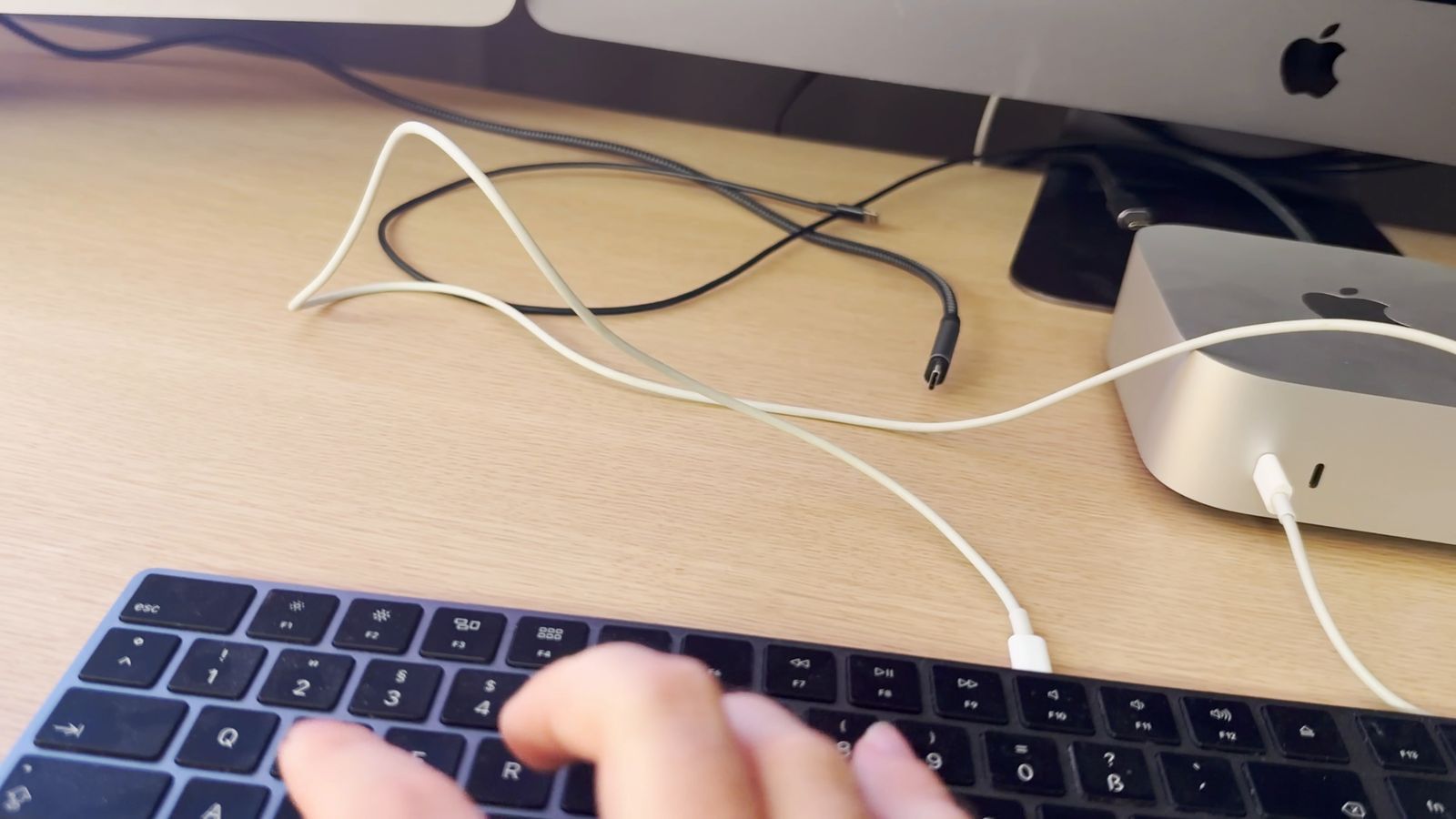
- Plug in the Thunderbolt cable, or leave it plugged in all the time. A few seconds later, the Mac mini appears in DisplayBridge on the iMac. Right after plugging in, its card can say "waiting for network address" for about 15 seconds while macOS sets up the connection.
- Click Show that Mac here, not Connect. Connect would do the opposite and send the iMac's screen to the Mac mini.
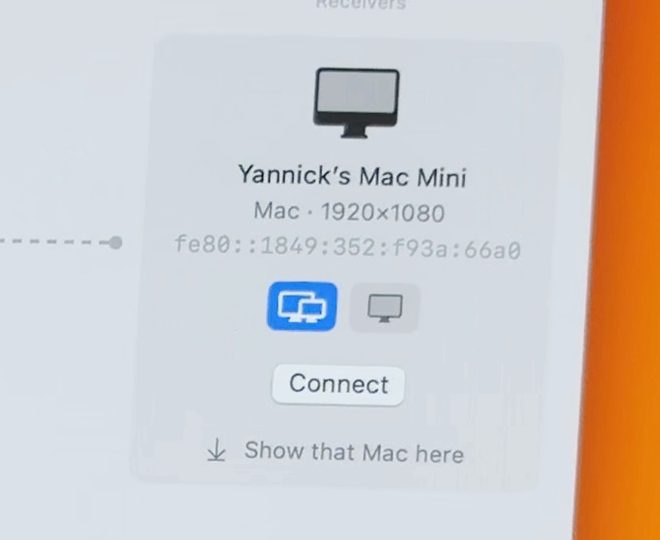
The iMac goes black for a second, and then it shows the Mac mini's desktop. From here you use the Mac mini normally, with its own keyboard and trackpad.
To check, open About This Mac in the Apple menu: it says Mac mini, on the iMac's screen. And in System Settings → Displays, the Mac mini has exactly one display, "DisplayBridge – iMac".
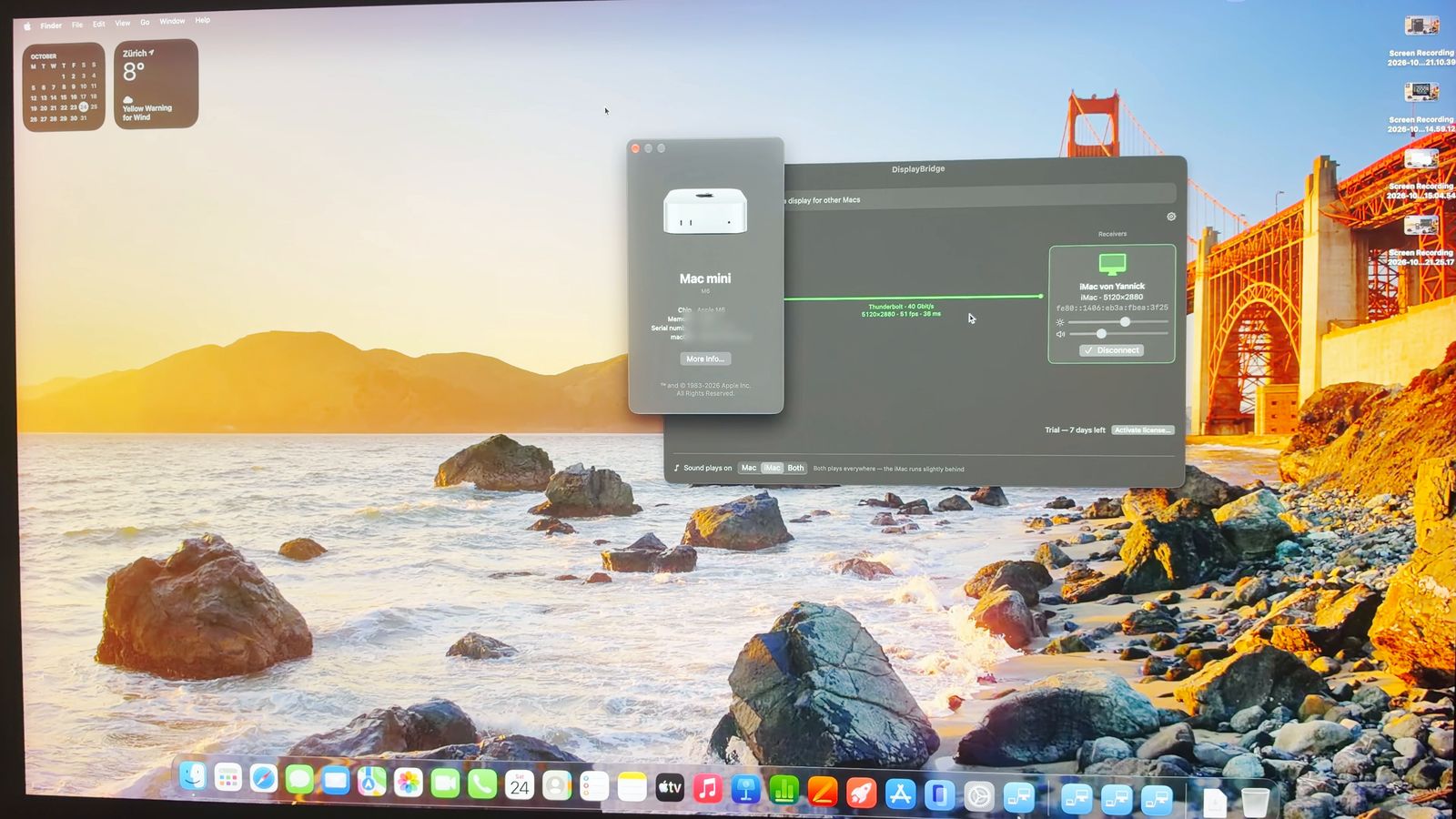
From now on: power on, password, one click
Every start is the same: switch on the Mac mini, wait half a minute, type your password blind, and click Show that Mac here on the iMac.
Locking and sleep
- Locking is no problem. If the Mac mini is running and you lock it, or it locks itself, DisplayBridge keeps running and the connection stays. The iMac shows the lock screen, and you unlock the Mac mini right there with your password, as usual. You only type blind after a restart, or when the Mac mini was switched off.
- Sleep stops the connection. When the Mac mini goes to sleep, the iMac shows its own desktop again, and after a few seconds the Mac mini's card disappears from DisplayBridge. Press a key on the Mac mini's keyboard, the space bar for example, and it wakes up. A moment later its card is back on the iMac, and Show that Mac here brings its picture back. With the Energy setting from step 4, this only happens when you put the Mac mini to sleep yourself.
A MacBook works as the screen too
Instead of the iMac, a MacBook can be the Mac mini's screen in exactly the same way: open DisplayBridge on the MacBook, connect the cable, and click Show that Mac here on the MacBook.
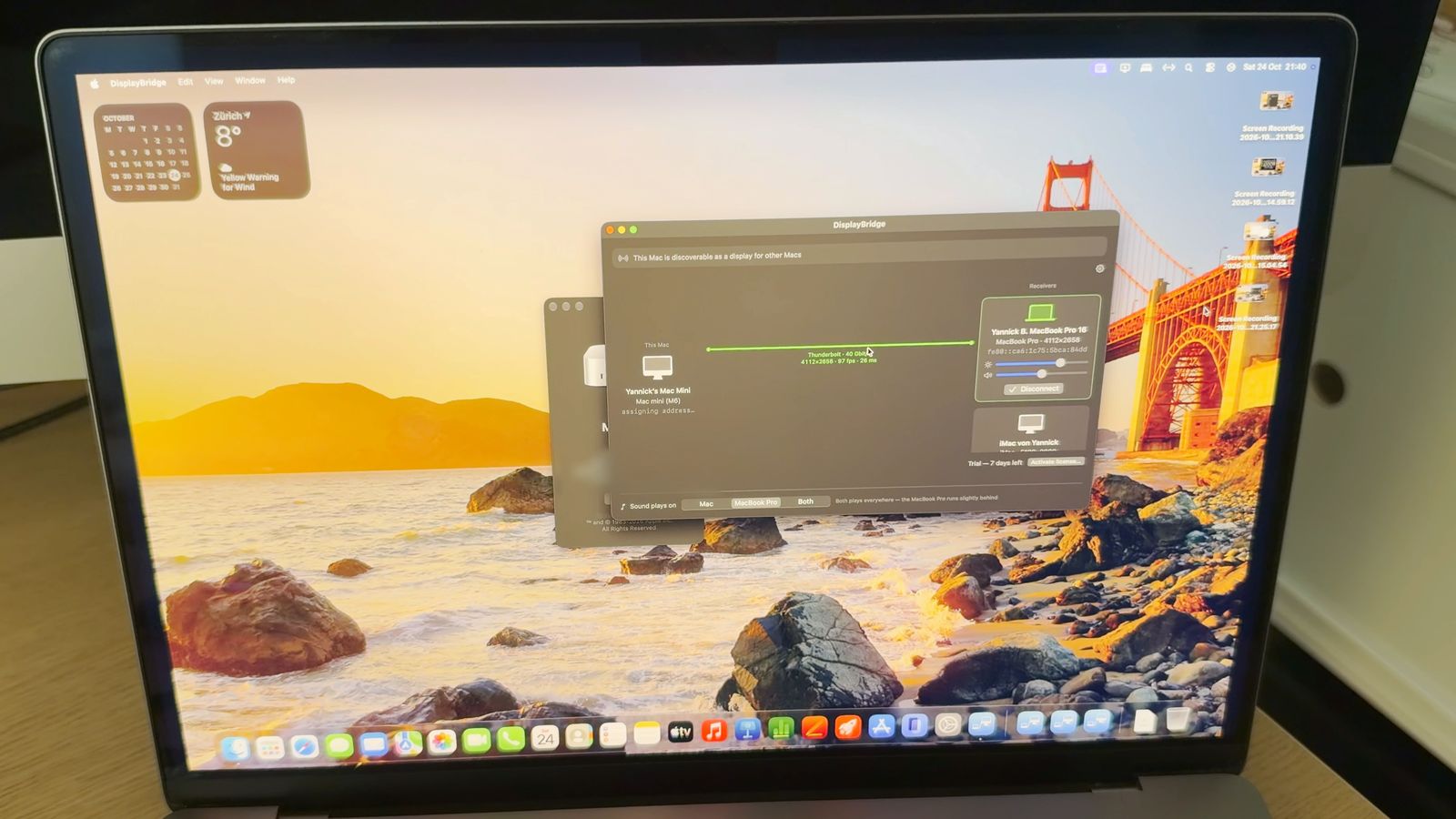
Two things are different:
- The first time, a MacBook with Apple silicon asks "Allow accessory to connect?" when you plug in the cable. Click Allow.
- Don't confuse the pointers. The MacBook may still show its own pointer. Use the keyboard and mouse connected to the Mac mini.
More about this in my guide Use a MacBook as a second monitor for another Mac.
Tips for everyday use
- My routine: I don't shut the Mac mini down at all. An idle Mac mini uses very little power. In the evening I unplug the cable and switch off the iMac; in the morning I switch on the iMac, open DisplayBridge and click Show that Mac here. No blind typing.
- Add DisplayBridge to the iMac's Login Items too, then it is already open when the iMac starts.
- Sound: at the bottom of the DisplayBridge window, under "Sound plays on", choose whether the sound plays on the Mac mini, on the iMac's speakers, or on both.
- Escape on the iMac's keyboard ends the picture. Then click Show that Mac here again.
- For macOS updates, plug a monitor or TV back in for that moment.
The honest limits
Know these before you rely on it
- No login screen on the iMac after a restart or a power cut. You type your password blind. Everything macOS shows before you log in, such as macOS Recovery or the startup options, needs a real monitor.
- One user account works best. With several accounts, the login screen may first want you to pick a user, which you would have to do blind as well. I have only tried it with one account.
- It doesn't reconnect by itself. After a restart, sleep, or when you switch the iMac off and on, you click Show that Mac here once.
- The iMac has to be on and logged in, with DisplayBridge open.
- The Mac mini needs its own keyboard and mouse. The iMac's don't control it.
- macOS can ask again. On macOS 15 or newer, macOS may occasionally ask again whether DisplayBridge may access the screen. If that happens while the Mac mini has no monitor, you need one to click Allow.
So keep a monitor or TV within reach for the rare day something goes wrong: plug it into the Mac mini over HDMI, and you are back.
Conclusion
An old 5K iMac makes an excellent monitor for a Mac mini: one cable, the full 5K picture, uncompressed, and the Mac mini can even run without any monitor of its own. With a monitor, it takes a few minutes to set up. Without one, it takes some preparation once, and after that every start is: power on, password, one click.
The easiest way to try it with your own Macs is to download the free 7-day trial; the iMac you use as the screen never needs a license.
Questions about this
Can the iMac's keyboard and trackpad control the Mac mini?
No. DisplayBridge sends the Mac mini's picture to the iMac, not your keyboard and mouse input. Connect a keyboard and a mouse or trackpad to the Mac mini itself; I use a Magic Keyboard and a Magic Trackpad. Whatever you type on the iMac's own keyboard goes to the iMac, and pressing Escape there ends the picture from the Mac mini.
Which Mac needs the DisplayBridge license, the Mac mini or the iMac?
Only the Mac mini, because it is the Mac that sends its screen. The iMac never needs a license, also not when you click Show that Mac here on it. After the free 7-day trial, the license costs $29, paid once.
Why can't I see the Mac mini's login screen on the iMac?
Because DisplayBridge is a normal app, and macOS only starts apps after you have logged in. While the Mac mini is at its login screen, nothing is running that could send a picture. That's why you type your password blind after a restart. Once the Mac mini is running, locking it is no problem: the lock screen does appear on the iMac, and you unlock it there.
Can the Mac mini log in by itself after a restart?
Only if you turn FileVault off, because macOS offers automatic login only without FileVault. That would save you the blind password, but then anyone who switches on your Mac mini is logged in to your account, and the data on its disk isn't encrypted. I keep FileVault on and type the password; I haven't tested the automatic login route with DisplayBridge.
What happens after a power cut?
The Mac mini stays off until you press its power button, unless you turn on Start up automatically after a power failure under Energy in System Settings. Either way, it then waits at the login screen, so you type your password blind and click Show that Mac here on the iMac, as after any restart.
Does this work with a Mac mini with M1, M2 or M4?
It should with every Mac mini with Apple silicon, because they all have Thunderbolt or USB4 ports and run macOS 13 Ventura or later. I tested it with my M6 Mac mini; the earlier Apple silicon models haven't been tested yet. The Intel Mac mini from 2018 has Thunderbolt 3 and meets the requirements too, but it isn't tested either.
Can two or three iMacs be monitors for one Mac mini?
Yes. Each iMac needs its own cable to a Thunderbolt port on the back of the Mac mini, and you click Connect once for each iMac. On my desk, the Mac mini uses my 5K iMac and my iMac Pro this way, next to a third screen.